

The Security Traders Platform
Deal Room User Guide
A clear, practical introduction to secure opportunities, verified participants, private rooms and controlled transaction workflows.
Sign-in details for the prototype are given on request.
User Guide
Contents
Section 01 / User Guide
Welcome to the Deal Room
One trusted workspace to move from introduction to controlled diligence and, where appropriate, external closing support.
The Deal Room is intended for advisers and introducers, seller mandates, qualified buyers, compliance reviewers and authorized administrators. Each opportunity has its own private workspace, access requirements, documents, messages, meetings and milestones.
Your first 10 minutes
- 1Accept your invitation from an expected Security Traders contact.
- 2Set up your account and multi-factor authentication (MFA).
- 3Complete the identity or business profile requested for your role.
- 4Review confidentiality rules and sign any required NDA.
- 5Open your dashboard to see assigned tasks, allowed opportunity summaries and room requests.
- 6Enter a room only after all required seller and compliance approvals are recorded.
How a deal progresses
Before a room opens
- Adviser submits intake
- Seller identity / authority reviewed
- Buyer qualification and NDA
- Seller + compliance match approval
After a room opens
- Participants enter initial room
- First private meeting recorded
- Additional documents released by tier
- Negotiation and closing support
Section 02 / User Guide
Know your dashboard
A mobile-first orientation to the key controls. The illustration below is a design concept, not a live screen capture.
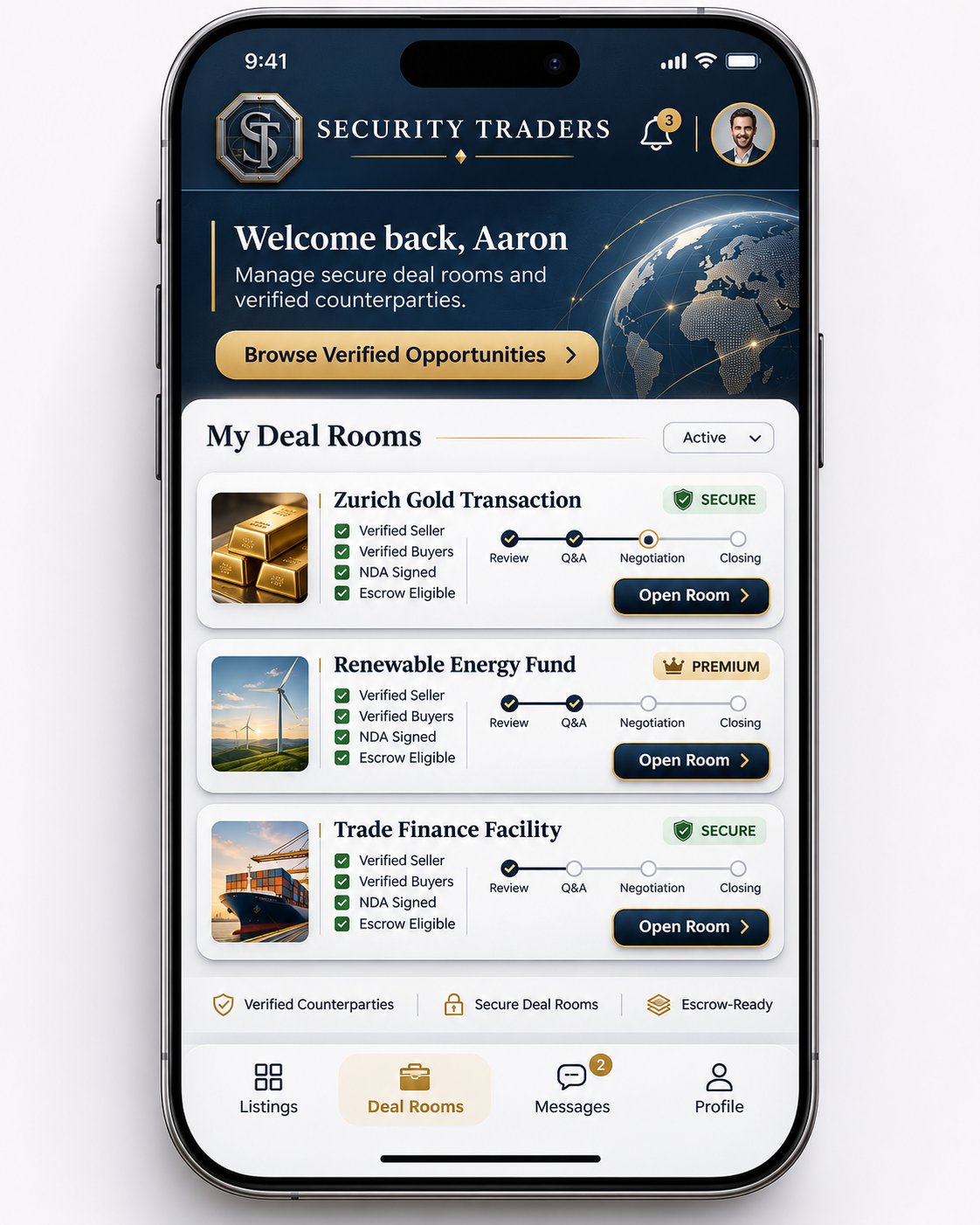
Opportunities
Browse only the blind summaries your role has been permitted to view—not a public search feed.
My Deal Rooms
See authorized cases, current stage and next actions.
Status indicators
Verification, NDA and escrow-related labels are conditional; confirm evidence and scope in the room.
Open Room
Open a workspace only when your access has been approved.
Messages
Use private room threads rather than informal outside chat.
Profile
Review your onboarding, identity and account security settings.
Section 03 / User Guide
Sign in, verify and gain access
Your identity, authority and permitted actions determine which rooms and information you can see.
Step-by-step account setup
- 1Open the invitation link you expected; if in doubt, verify with the sender through a separate trusted channel.
- 2Create your login and enroll an MFA method; do not share codes or reuse passwords.
- 3Complete the individual or business profile. Provide company information where KYB is required.
- 4Upload requested KYC/KYB or authority documents through the secure platform—not email or public links.
- 5Read and accept the platform rules and any opportunity-specific NDA.
- 6Check your dashboard for “Pending,” “Clarification Requested,” or “Approved” actions; respond inside the platform.
What unlocks access?
| Control | User action |
|---|---|
| Identity / business review | Provide accurate, current supporting records. |
| Seller authority review | Show that the seller mandate can act for the seller. |
| Buyer capacity review | Provide required POF through the assigned secure workflow. |
| NDA and room rules | Sign and acknowledge before restricted materials are released. |
| Seller and compliance consent | Wait for approval; a request is not permission. |
Section 04 / User Guide
For advisers and introducers
Submit a clear opportunity, coordinate participants and keep a complete record of introductions and next steps.
Create a new opportunity
- 1From the adviser dashboard, choose Create Opportunity / New Intake.
- 2Enter a clear case title, transaction category, jurisdiction and permitted high-level summary.
- 3Identify the seller mandate and invite the correct representative.
- 4Upload only the initial documents necessary for internal screening.
- 5Save draft or submit for compliance review; track missing information in the intake checklist.
- 6Nominate buyer prospects only when permitted and when they have a legitimate basis to participate.
- 7Request a room only after the seller-side review, buyer qualification and approvals are complete.
Manage the case after submission
Do
- Maintain an accurate status and milestone owner.
- Keep communication inside approved room channels.
- Record meeting dates, action items and decisions.
Avoid
- Posting real identities in blind summaries.
- Promising acceptance before compliance signs off.
- Sharing POF or mandate files outside the assigned vault.
Section 05 / User Guide
For seller mandates
Demonstrate authority and decide what approved buyers may see—and when.
Onboarding and authority review
- 1Accept the secure invitation and complete the seller-side profile.
- 2Upload identification, company records and written authority or mandate documents as requested.
- 3Answer verification questions and resolve discrepancies before proceeding.
- 4Review buyer access requests after the buyer has completed its qualification process.
- 5Approve or decline a proposed match; approval should specify the buyer and allowed disclosure scope.
- 6Release additional documents only after the required milestone and compliance authorizations.
Document disclosure ladder
| Tier | Usual content | Release rule |
|---|---|---|
| Teaser | Anonymized summary; high-level terms | Only to approved teaser audience |
| Initial room | Overview, structured questions, approved introductory files | After buyer + seller + compliance approval |
| Advanced diligence | Sensitive transactional and financial support | After first meeting and next-tier authorization |
| Closing support | Final supporting legal / coordination records | Authorized parties and external professionals only |
Section 06 / User Guide
For qualified buyers
Complete screening, review the permitted blind summary and request access to the correct private room.
Buyer journey
- 1Accept an expected invitation or follow an approved access route.
- 2Complete individual KYC and, when applicable, company KYB.
- 3Provide required proof-of-funds or financial-capacity records through the secure upload process.
- 4Review and sign the NDA and room participation rules.
- 5Read only the blind opportunity information made available to your account.
- 6Select Request Room Access and wait for seller-side consent and compliance approval.
- 7After admission, use the room Q&A, document viewer and meeting scheduler for diligence.
- 8Request more documents through the workflow; do not assume you are entitled to all files.
Questions to ask before a transaction advances
- Who has been verified, by whom, and for what purpose?
- What evidence supports the seller’s authority and the specific asset or opportunity?
- What independent legal, financial or technical diligence remains outstanding?
- Who handles escrow or settlement externally, and how are their identities independently confirmed?
Section 07 / User Guide
Inside your private Deal Room
Everything relevant to one approved transaction belongs in one permissioned workspace.
| Tab | What it helps you do |
|---|---|
| Overview | Confirm case scope, status, confidentiality level and current tasks. |
| Participants | See authorized counterparts and their permitted roles. |
| Documents | Access the specific files and versions released to you. |
| Messages | Discuss operational questions in an auditable room thread. |
| Q&A Tracker | Ask formal questions, assign responses and monitor due dates. |
| Meetings | Request a meeting, see agenda and record attendance or actions. |
| Milestones | See the next gate, owner, due date and required evidence. |
| Audit Log | See activity that your access tier allows you to review. |
A simple first-visit routine
- 1Read the Overview and confirm the case name, participants and stage.
- 2Check the next Milestone for assigned tasks or missing approvals.
- 3Review the released Documents; note file version and access restrictions.
- 4Use Q&A for requests that need a tracked answer and owner.
- 5Book or attend the first private meeting, then log the agreed next steps.
Section 08 / User Guide
Use the secure Document Vault
The vault organizes evidence, restricts copying and keeps a record of who handled which version.
Common folders
| Folder | Examples |
|---|---|
| Introductory Summary | Approved teaser, initial deal overview |
| Identity & Corporate | Personal identity and corporate records |
| Authority & Mandate | Resolutions, representation letters, mandate evidence |
| Compliance | KYC/KYB, screening consent and review checklists |
| Financial Capacity / POF | Restricted capacity or proof-of-funds records |
| Transaction Notes | Requests, process memos and clarifications |
| Legal / NDA / Terms | Executed confidentiality and legal documents |
| Meetings | Agendas, notes, attendance and follow-up tasks |
| Closing Support | Documents for authorized external closing preparation |
Before you upload or view a file
- Confirm it belongs to the correct case and folder.
- Check its sensitivity tier and whether its release has been authorized.
- Use a descriptive filename and current version; avoid unnecessary personal data.
- Follow view-only, watermark and download restrictions.
- Do not screenshot, forward or circulate restricted materials outside the room.
Section 09 / User Guide
Messages, Q&A, meetings and milestones
Use structured collaboration to keep decisions visible and important follow-ups from being lost.
Choose the right tool
| Need | Use | Best practice |
|---|---|---|
| Quick coordination | Secure Messages | Keep business discussion tied to the case. |
| An answer that must be tracked | Formal Q&A | Set an owner, due date, clear response and resolution. |
| A discussion requiring participants | Meetings | Record agenda, attendees, decisions and next steps. |
| Progress or an approval gate | Milestones | Complete required evidence before requesting next stage. |
The 10 deal milestones
Intake Opened
Seller Verified
Buyer Qualified
NDA Completed
Room Activated
First Meeting Held
Additional Documents Shared
Negotiation Active
Closing Support
Closed / Archived
Each milestone should identify its owner, due date, required documents, approval status and notes. The phone mock-up simplifies this into Review → Q&A → Negotiation → Closing; use the detailed milestone list when managing the actual workflow.
Section 10 / User Guide
Security and confidentiality essentials
A well-run Deal Room protects both parties and preserves an auditable record of decisions.
Five rules worth remembering
- 1Use MFA and keep your device, password and account recovery methods secure.
- 2Never share credentials, private keys, bank login information or one-time passcodes.
- 3Do not forward invite links, documents or screenshots to unapproved third parties.
- 4Verify any change to settlement, escrow, custodian or payment instructions independently using known contact details.
- 5Immediately report suspicious access, forged files, pressured disclosure or unexpected changes in counterparties.
Security features expected in the proposed platform
Access controls
- Invitation-only onboarding and verification.
- Role- and stage-based visibility.
- MFA, session expiry and suspicious-login alerts.
Document controls
- Encrypted vault and activity trails.
- File watermarking and view-only tiers.
- Time-limited access and restricted downloads.
If something seems wrong
Stop sharing new information. Preserve the message or case reference. Notify the assigned compliance contact or room administrator through an approved channel and request a hold or access freeze if appropriate. Do not attempt to resolve suspected fraud by sending additional funds or identity records.
Section 11 / User Guide
Common questions and practical help
Fast answers to the situations new users are most likely to encounter.
I can see a teaser but not a deal room. Is something wrong?
Not necessarily. Blind summaries and room entry have different access requirements. Complete the requested review, NDA and approvals before requesting room access.
Why can’t I see a seller’s full identity?
The system uses progressive disclosure. Identity and sensitive documents remain restricted until the required gate is approved.
Can I invite a lawyer, custodian or colleague?
Only through an approved participant-addition process. The compliance officer or administrator controls supporting roles and their permissions.
Can I download everything in the vault?
No. Some files may be view-only, watermarked or unavailable at your current disclosure tier.
How do I ask a question and make sure it gets answered?
Use a Formal Q&A item with a clear question, responsible owner and due date, rather than relying on untracked chat.
What if my verification was rejected or a room is on hold?
Review any stated reason, provide requested clarification through the secure portal and contact the assigned reviewer. Do not create another account to evade a decision.
Does “Escrow Eligible” mean funds are protected?
No. In the mock-up it is an illustrative label only. Escrow arrangements, providers and instructions require separate due diligence and confirmation.
Section 12 / User Guide
Quick reference and glossary
Keep this page nearby while learning the platform.
Who does what?
| Role | Primary responsibility |
|---|---|
| Adviser / Introducer | Creates intake, nominates prospects and coordinates progress. |
| Seller Mandate | Proves authority, approves matches and manages document disclosure. |
| Qualified Buyer | Completes KYC/KYB, capacity checks and NDA; requests access. |
| Compliance Officer | Reviews evidence, authorizes tiers and can freeze a room. |
| Administrator | Manages platform access, templates, audit and security settings. |
| Support roles | Legal, custodian, observer or coordinator—only if approved. |
Glossary
| Term | Plain English |
|---|---|
| KYC / KYB | Know Your Customer / Know Your Business checks. |
| Seller mandate | A person or entity claiming authority to represent a seller. |
| POF | Proof of funds or financial-capacity documentation. |
| NDA | Non-disclosure agreement for confidential information. |
| Blind summary | An approved opportunity overview without restricted identifiers. |
| Disclosure tier | The level of information your approvals allow you to access. |
| Audit log | Record of key actions, approvals and document activity. |
Source & scope
Adapted for Security Traders from the supplied “Invest Offshore Deal Room (Secure App) Dashboard Operations Manual,” version 1.0, and the previously developed Security Traders Deal Room technical specification. The branded mobile dashboard is a visual concept. This guide is intended for onboarding and stakeholder review—not a claim of current product availability, regulatory authorization, successful verification, custody or settlement capabilities.
Download the Deal Room User Guide
Version 1.0 | 9 November 2026
Sign-in details for the prototype are given on request.